


Updating PHP can improve the security, performance, and long-term maintainability of a WordPress site. It can also reveal years of ignored compatibility problems in a few seconds.
The actual version switch is usually the easy part. The important work happens before it: identifying everything that runs PHP code, checking whether it is maintained, testing it against the target version, and preparing a rollback that you can use if production does not behave like staging.
This guide explains how to upgrade PHP safely on a WordPress site, using a move from PHP 7.4 to PHP 8.4 as the main example. The same process applies to other major PHP upgrades.
Short answer: To upgrade PHP safely in WordPress, inventory the complete stack, review themes and plugins for compatibility, create a restorable backup, reproduce the site on staging, enable logging, test the target PHP version against real user flows, resolve incompatible code, prepare a rollback, and monitor the site after deployment. Do not make the first version switch on production.
PHP 7.4 has been unsupported since November 2022, which means it no longer receives official security fixes. PHP versions have defined active-support and security-support periods, so check the current PHP support table when selecting a target version.
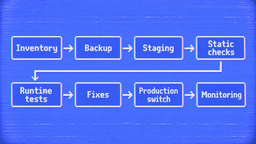
At a high level, a safe WordPress PHP upgrade follows eight stages:

1. Assess the site before changing PHP
A PHP upgrade affects more than WordPress core. Themes, plugins, must-use plugins, custom snippets, command-line scripts, and server extensions can all introduce compatibility problems.
Start by understanding what you actually have.
Choose the target PHP version
Confirm that the target PHP version is supported by your WordPress version. WordPress maintains an official PHP compatibility table covering current and older WordPress releases.
That table only confirms WordPress core compatibility. It does not prove that every plugin, theme, or custom integration on your site will work.
Think of compatibility as three separate questions:
- Does WordPress core support the target PHP version?
- Do the vendors of your themes and plugins support it?
- Does your exact site work correctly when those components run together?
Only the third question can be answered by testing the site.
Create an inventory of the WordPress stack
Document at least the following:
- WordPress version;
- current and target PHP versions;
- active and inactive plugins;
- active parent and child themes;
- must-use plugins and drop-ins;
- code added through a snippets plugin;
- custom integrations and standalone PHP scripts;
- Composer packages;
- WP-Cron and server cron jobs;
- background-processing systems such as Action Scheduler;
- page cache, object cache, and CDN configuration;
- database server and version;
- required PHP extensions;
- external services, webhooks, and API connections.
Do not assume all custom code lives in the active theme. It may also be inside mu-plugins, wp-content drop-ins, a snippets plugin, a custom integration plugin, or a script called directly by server cron.
If you have WP-CLI access, it can make the first inventory faster:
wp core version
wp plugin list --fields=name,status,version,update,requires_php,tested_up_to,wporg_status,wporg_last_updated
wp theme list
wp site-health check
The `wp plugin list` command can report update status, declared PHP requirements, WordPress.org status, and the last WordPress.org update date. Empty metadata does not automatically mean a component is unsafe: private, commercial, and custom plugins may not exist in the public repository.
Also compare the PHP modules available to the web server and command line:
php -v
php -m
Be careful here. The CLI can use a different PHP binary and configuration from the web server. A successful WP-CLI command does not prove that the site is running the same PHP version through Apache, Nginx, or PHP-FPM.
Review plugin compatibility
For every plugin involved in an important user or business process, check:
- its latest available version;
- changelog and release notes;
- minimum and supported PHP versions;
- recent support activity;
- known compatibility notices;
- whether your licence still receives updates;
- whether custom code depends on its functions, hooks, or database tables.
Pay particular attention to plugins responsible for forms, payments, memberships, multilingual content, imports, search, email delivery, caching, backups, and security. A failure in one of these areas may not be visible on the homepage.
An expired premium-plugin licence deserves separate attention. The plugin may still appear functional while no longer receiving compatibility or security updates.
Review the active theme and custom code
Check both the parent theme and child theme. A maintained parent theme does not automatically make old child-theme overrides compatible.
Review:
functions.phpand included PHP files;- overridden WooCommerce templates;
- custom page-builder elements;
- widgets and shortcodes;
- AJAX handlers;
- REST API endpoints;
- custom database queries;
- scheduled callbacks;
- integrations with third-party SDKs;
- bundled libraries that have not been updated with the theme.
If a theme has not been maintained for years, replacing it may be safer than repeatedly patching code that will fail again during the next WordPress or PHP upgrade. That decision depends on how much functionality the theme owns and how difficult its data is to migrate.
Identify abandoned dependencies
An old update date is a warning signal, not a complete diagnosis. Some small plugins remain compatible without frequent releases. Others contain ten-year-old assumptions that fail as soon as PHP becomes stricter.
Look for a combination of red flags:
- no releases for several years;
- an unavailable vendor website;
- unanswered support requests;
- no documented support for modern WordPress or PHP;
- code using removed PHP functions or outdated libraries;
- critical theme functionality coupled directly to the plugin;
- no realistic migration or replacement path.
Do not delete an abandoned plugin before understanding what it owns. It may store structured content, register post types, provide shortcodes, add custom fields, or expose functions called by the theme. Removing it without a migration plan can replace a compatibility problem with missing content or a fatal error.
2. Prepare a safe testing environment
The first PHP switch should happen somewhere disposable. That means a staging or local environment that can fail without affecting orders, enquiries, publishing, or customer accounts.
Create a complete backup
Before updating anything, capture:
- the database;
- WordPress core, themes, and plugins;
- uploads and generated files that cannot be recreated;
wp-config.phpand relevant server configuration;- environment variables and secrets through a secure process;
- cron configuration;
- current DNS, cache, and CDN settings where relevant.
A backup plugin reporting “success” is not the same as a verified recovery plan.
Confirm that the backup can be restored
At minimum, verify that:
- the archive opens;
- the database dump is present and readable;
- the upload directory is included;
- you know where the backup is stored;
- someone has the access required to restore it;
- the recovery steps are documented.
For a business-critical site, test the restoration on staging. The worst time to learn that a backup is incomplete is after the live site has stopped processing orders.
Build a representative staging environment
Staging should match production closely enough for the test to mean something. Compare:
- web server and PHP handler;
- database engine and version;
- PHP extensions and important
php.inivalues; - filesystem permissions;
- cache and object-cache configuration;
- environment variables;
- cron behavior;
- external API credentials or safe sandbox replacements.
Some differences are intentional. You may disable real payment capture, outgoing customer email, analytics, and production webhooks on staging. Document those differences so they do not create false confidence.
Prepare the rollback before testing
A rollback plan should answer four questions:
- How do we return to the previous PHP version?
- Do any database or file changes also need to be reverted?
- What failure conditions trigger the rollback?
- Who has the access and authority to perform it?
Switching the PHP version back may be enough when the application has not changed data. It may not be enough after plugin updates, database migrations, or transactions performed under a partially broken system.
Enable error logging on staging
Use logging to catch problems that do not produce a visible fatal error:
define( 'WP_DEBUG', true );
define( 'WP_DEBUG_LOG', true );
define( 'WP_DEBUG_DISPLAY', false );
@ini_set( 'display_errors', 0 );
Place these definitions before the “That’s all, stop editing” line in wp-config.php. WordPress recommends its debug tools for development and staging rather than live sites. See the official WordPress debugging guide.
Review more than wp-content/debug.log. Depending on the site, useful evidence may appear in:
- the PHP error log;
- web-server logs;
- PHP-FPM logs;
- WooCommerce logs;
- Action Scheduler failures;
- plugin-specific logs;
- the browser console and Network panel.
3. Update and test the WordPress stack
Do not change several major variables at once and then try to guess which one caused the failure. Establish a baseline, update deliberately, and keep a record of every change.
Establish a baseline on the current PHP version
Before the upgrade, test the site on its existing PHP version and record known problems.
Confirm that:
- important pages load;
- administrators can edit and publish content;
- forms submit and store entries;
- email notifications arrive;
- cron and scheduled actions run;
- imports and exports complete;
- the checkout works, if applicable;
- logs do not already contain unresolved fatal errors.
Without a baseline, an old bug may be incorrectly blamed on the PHP upgrade, while a new background failure may be missed because the visible pages still work.
Update WordPress, plugins, and themes deliberately
In many cases, the safest order is:
- update supported components on staging while still using the old PHP version;
- test the site again;
- switch staging to the target PHP version;
- resolve the remaining compatibility problems.
This is not a universal rule. A current plugin release may already require a newer PHP version, while an intermediate release may be needed to complete a database migration. Read the vendor’s upgrade path before using “Update all.”
Take another snapshot after the WordPress updates work on the old PHP version. This gives you a cleaner recovery point for the PHP-specific stage.
Run static compatibility checks
Static analysis can find removed functions, unsupported syntax, and other cross-version issues before runtime reaches them. For custom WordPress code, PHPCompatibilityWP provides a WordPress-aware PHP_CodeSniffer ruleset.
An example scan for custom PHP code that must work across PHP 7.4 through 8.4 looks like this:
vendor/bin/phpcs -p wp-content/themes/your-child-theme \
  --standard=PHPCompatibilityWP \
  --extensions=php \
  --runtime-set testVersion 7.4-8.4
Run the tool according to its current installation documentation and include custom plugins and must-use plugins in the review.
A clean scan is useful evidence, not a guarantee. Static analysis cannot confirm that a payment callback arrives, a scheduled import completes, or an editor can save a complex page.
Switch staging to the target PHP version
After switching PHP on staging:
- clear the page cache;
- clear the object cache;
- reset OPcache or restart the relevant PHP service if you control it;
- confirm the PHP version used by the website, not only the CLI;
- open the frontend and wp-admin;
- review logs before continuing.
If the site fails immediately, capture the first meaningful error before disabling components at random. One incompatible plugin can prevent WordPress from loading far enough to show the next problem.
Review every intervening PHP migration guide
When moving from PHP 7.4 to 8.4, do not read only the PHP 8.4 notes. The code crosses the compatibility changes introduced in PHP 8.0, 8.1, 8.2, 8.3, and 8.4.
The PHP manual maintains migration guides for each version in its migration index. PHP 8.0, for example, removed several previously deprecated behaviors and converted some warnings into Error or TypeError exceptions. PHP 8.2 deprecated the creation of dynamic properties for most classes.
You do not necessarily need to run production sequentially on every intermediate PHP release. You do need to account for the accumulated language changes and test the final target properly.
Recognize common compatibility failures
Typical problems include:
- removed PHP functions and legacy constructors;
- incompatible inherited method signatures;
- calls to non-static methods made statically;
- stricter handling of invalid argument types;
- undefined variables, properties, and array keys;
- deprecated dynamic properties;
- outdated implementations of PHP interfaces;
- bundled libraries that assume older resource types;
- old autoloaders;
- custom code depending on changed comparison or error behavior.
Do not silence every deprecation as the final fix. Deprecations identify code that may become a fatal problem in a later PHP version. Fix the source when you own it; update or replace the dependency when you do not.
4. Test the functionality that matters
A homepage smoke test is not a compatibility test. PHP problems often appear only when a specific template, AJAX request, cron callback, or integration executes.
Build a test matrix around how the site is actually used.
Test the public website
Check:
- primary templates and navigation;
- search, filtering, and pagination;
- account and restricted-content pages;
- multilingual routes;
- dynamic forms and calculators;
- embedded media;
- downloads and generated documents;
- mobile layouts where server-rendered markup changes by context.
Use more than one user state where relevant: logged out, subscriber, customer, editor, and administrator.
Test WordPress administration
Verify that administrators and editors can:
- log in and reset passwords;
- create, edit, preview, and publish content;
- upload and process media;
- use custom fields and metaboxes;
- edit page-builder layouts or blocks;
- manage users and settings;
- access plugin-specific admin screens;
- complete bulk actions without timeouts.
An upgrade is not successful if the public site works but the content team can no longer maintain it.
Test forms and email delivery
For every important form, verify:
- client-side and server-side validation;
- successful submission;
- database entry creation;
- administrator notification;
- user confirmation;
- file attachments;
- spam protection;
- CRM or email-marketing handoff.
Check the receiving system as well as the “success” message shown in the browser.
Test scheduled and background processes
Background failures are easy to miss because nobody is watching when they occur.
Test:
- WP-Cron;
- server cron commands;
- Action Scheduler queues;
- scheduled posts;
- recurring imports and exports;
- backup jobs;
- image processing;
- data synchronization;
- cleanup and retention tasks.
Review scheduled jobs again after they have had enough time to run under the new PHP version.
Test WooCommerce separately
For a WooCommerce site, include at least:
- simple and variable product pages;
- product search and filtering;
- cart updates;
- coupons;
- taxes and shipping calculations;
- guest and account checkout;
- each active payment gateway;
- payment callbacks and webhooks;
- order creation and status changes;
- stock reduction;
- transactional email;
- refunds;
- subscriptions or memberships, where applicable;
- scheduled actions and product synchronization.
Use sandbox payment methods and prevent staging orders from reaching production fulfilment systems.
Test third-party integrations
Exercise the actual connection rather than checking only the WordPress settings screen. This includes:
- CRM and ERP integrations;
- payment and donation platforms;
- email marketing;
- search services;
- authentication providers;
- analytics and consent tools;
- CDN and image services;
- external APIs and webhooks.
Watch for both hard failures and changed data. Stricter type handling can produce incorrect comparisons or empty values without making the entire request visibly crash.
5. Resolve compatibility problems
Once testing produces a list of issues, classify them before fixing them. This prevents emergency patches from becoming permanent architecture by accident.
Decide whether to update, patch, replace, or remove
For each incompatible component, choose one path:
- Update: A maintained release supports the target PHP version.
- Patch: You own the code and can correct it safely.
- Replace: The dependency is abandoned or no longer fits the site.
- Refactor: The integration is too coupled to replace without changing surrounding code.
- Remove: The functionality is unused and its data is no longer required.
- Postpone: The upgrade cannot proceed safely yet, and the reason and remediation plan are documented.
Do not edit third-party plugin files as a long-term solution. The next update can overwrite the change, and the patch becomes difficult to track. Prefer an upstream update, supported extension point, replacement, or version-controlled compatibility layer.
Replace abandoned plugins without losing data
Before removing an abandoned plugin, determine:
- which database tables, options, posts, terms, and metadata it owns;
- whether deactivation or uninstall deletes data;
- which shortcodes, blocks, widgets, and templates depend on it;
- whether the theme calls its PHP functions directly;
- how its data maps to the replacement;
- what must remain available during the transition.
Build and test the migration before removing the old component. If the plugin registers a post type or taxonomy, content may still exist in the database while disappearing from wp-admin and the frontend.
Fix custom themes and plugins at the source
Prioritize fixes that can cause fatal errors or incorrect data:
- method signatures and inheritance;
- removed functions;
- invalid argument types;
- undeclared object properties;
- old interface implementations;
- database queries and result handling;
- AJAX and REST callbacks;
- cron and queue handlers;
- bundled SDKs and Composer dependencies.
Keep compatibility requirements explicit in version control and automated tests where possible. A one-off PHP upgrade is useful; a project that knows which PHP versions it supports is easier to maintain.
Repeat the complete test cycle
After fixing a failure, do not test only the page where it appeared. The same function or dependency may be used by several workflows.
Repeat the relevant matrix, review fresh logs, and confirm that the fix works with both the target PHP version and the rollback version if you still need that option during deployment.
6. Deploy the PHP upgrade to production
Move to production only after staging has passed the agreed test matrix and every unresolved warning has been classified.
Prepare the production deployment
Before the maintenance window:
- deploy or synchronize the tested code changes;
- confirm that production matches the tested revisions;
- create a fresh database and file backup;
- verify access to the hosting panel, SSH, logs, and cache controls;
- pause sensitive imports or background jobs where necessary;
- decide whether orders, submissions, or publishing must be temporarily restricted;
- keep the rollback steps open and ready;
- tell relevant stakeholders what is changing and how success will be confirmed.
The latest production content may have changed since staging was created. Do not overwrite the live database with an older staging copy merely to deploy PHP compatibility fixes.
Switch PHP and run a production smoke test
After switching the production PHP version:
- confirm the version used by web requests;
- clear every relevant cache;
- open several public templates;
- log in to wp-admin;
- submit a test form;
- complete a safe test transaction if the site accepts payments;
- trigger or inspect critical scheduled jobs;
- verify email and external integrations;
- review logs immediately.
Keep the first smoke test short enough that you can decide quickly whether to continue or roll back.
Know when to roll back
Rollback is usually the right choice when:
- checkout, forms, authentication, or another critical flow fails;
- fatal errors affect multiple areas;
- background jobs are corrupting or dropping data;
- the cause cannot be isolated within the maintenance window;
- the fix requires an untested plugin, theme, or database change.
Rolling back is not a failed upgrade process. It is the safety mechanism doing its job.
Monitor after deployment
Continue monitoring after the initial smoke test. Some processes run hourly, daily, or only after a specific external event.
Watch:
- PHP and server logs;
- uptime and response errors;
- form entries and notifications;
- orders and payment callbacks;
- scheduled actions and cron;
- integrations and imports;
- unusual changes in memory use or execution time;
- reports from editors, support staff, and customers.
Document what changed, what was tested, and which PHP version is now supported. This will make the next upgrade substantially less dramatic.
PHP upgrade checklist for WordPress
Use this condensed checklist before changing production:
- ☐ The target PHP version is supported by the installed WordPress version.
- ☐ Plugins, themes, must-use plugins, custom code, and PHP extensions are inventoried.
- ☐ Critical and abandoned dependencies have been reviewed.
- ☐ A complete backup exists and has been checked or restored successfully.
- ☐ Staging represents the important parts of production.
- ☐ Existing site problems have been documented as a baseline.
- ☐ Error logging is enabled on staging.
- ☐ WordPress, plugin, and theme updates follow a documented upgrade path.
- ☐ Custom code has been reviewed with static analysis where appropriate.
- ☐ The target PHP version has been tested on staging.
- ☐ Public, administrative, form, cron, integration, and commerce workflows have been tested.
- ☐ Incompatible components have been updated, fixed, replaced, or removed.
- ☐ A production rollback procedure is ready.
- ☐ Production smoke tests are defined.
- ☐ Post-deployment monitoring is active.
Final takeaway
A safe WordPress PHP upgrade is not a version switch. It is a compatibility project involving the application, its dependencies, the server environment, and the workflows people rely on.
The more legacy code and third-party integrations a site contains, the more important staging, logging, functional testing, and rollback planning become. A careful upgrade takes longer than clicking a dropdown in a hosting panel. It also costs much less than discovering a broken checkout or silent form failure several days later.
If you have an older WordPress site and the upgrade path is unclear, I can audit the stack, identify the risky dependencies, test the target PHP version, and plan the production rollout. Learn more about performance and technical WordPress improvements or start a project brief.


